Paperchute

Scan paper. It lands in your folder. That’s it.

A free iPhone app with one job: scan a document and drop the PDF where you decided beforehand: a folder in iCloud Drive or Google Drive, your Paperless-ngx server, or a URL of your own. No library, no editing, no tags, no subscription.

Get it on the App Store Free. iPhone only, iOS 27 or later.

How it works

  1. Pick a placeChoose a folder you already have in iCloud Drive (or anywhere in the Files app) or Google Drive, or point it at Paperless-ngx or a webhook. Give it a name, like “Archive”. That’s a destination.
  2. Put it on your Home ScreenAdd the Paperchute widget and pick the destination. One widget per destination if you like.
  3. Tap, scan, doneThe widget opens the camera. Scan, tap Save, and the PDF goes there. Swipe the app away.

What it looks like

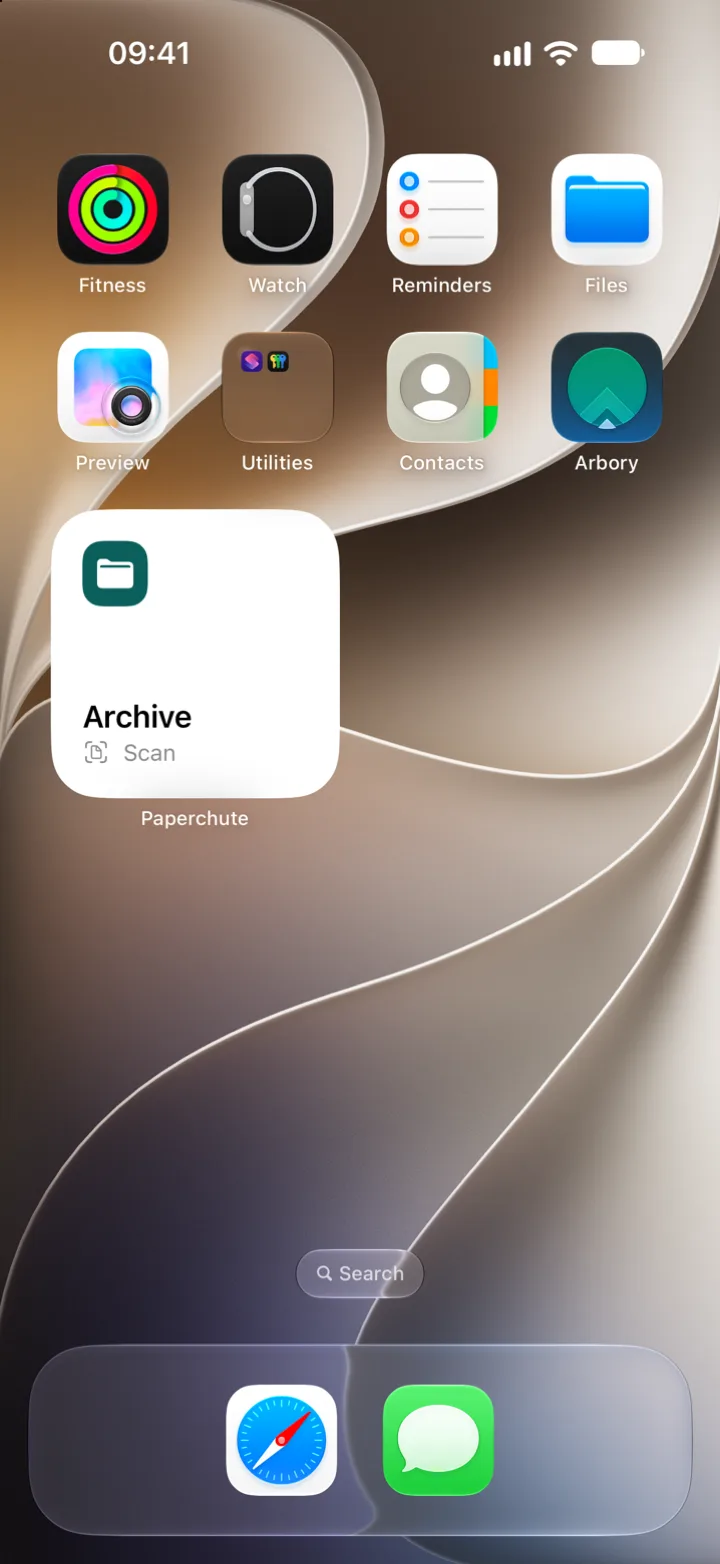
Home Screen with Paperchute widgets for Archive and Family archive
A widget per destination. Tap it and the camera opens.
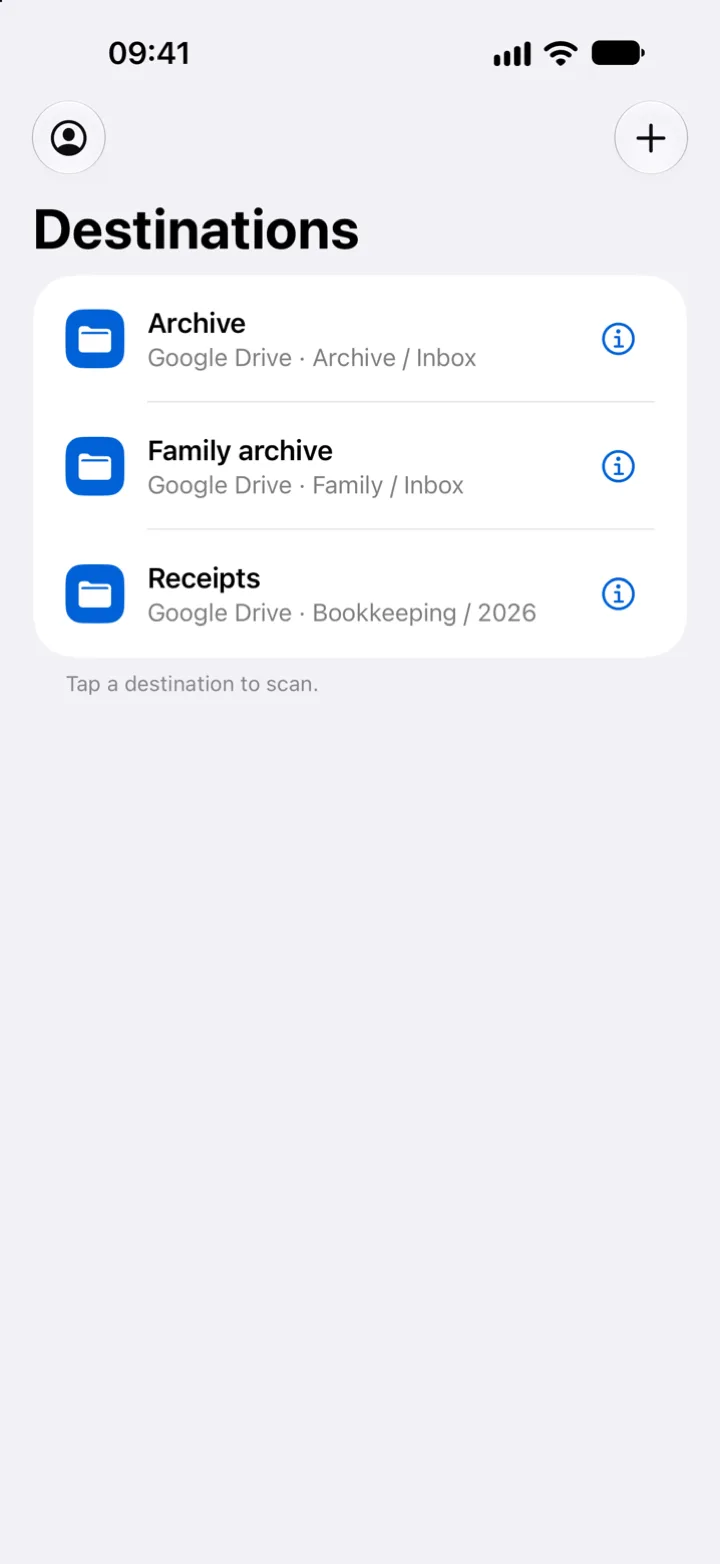
Destinations list: Archive, Family archive, Receipts
The whole app, basically. Tap a row to scan into it.
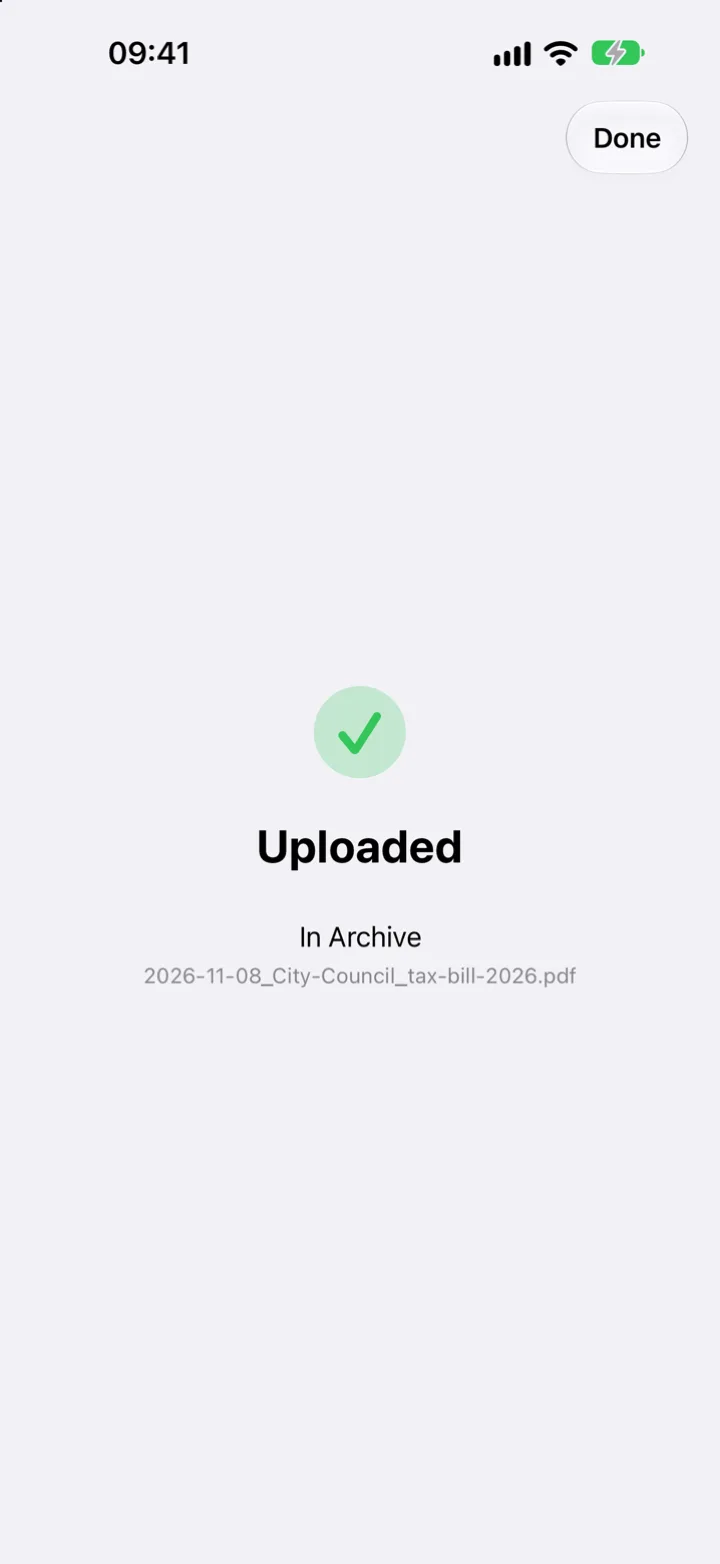
Confirmation: Uploaded, in Archive, as 2026-11-08_City-Council_tax-bill-2026.pdf
It only says “Uploaded” when the file is actually there. And it named the file for you.

Why I made this

I’m Jorijn, a freelance DevOps engineer from the Netherlands. I was fed up with receipts. They were everywhere: in the car, in coat pockets, on the kitchen counter, in the drawer where things go to be forgotten. Letters got the same treatment, just slower.

I already had a decent digital archive in Google Drive: everything goes into an inbox folder first and a small routine files it from there. The missing piece was getting paper into that inbox at the moment it shows up. In the shop, at the petrol station, standing at the door with an envelope. Not later, at a desk, with a scanner app and a share sheet. Later never happens.

The scanner apps that could shortcut this all wanted a subscription. Around fifty euros a year for something the iPhone already does out of the box: iOS has had a very good document scanner built in since 2017. The apps were charging for the part in between: getting the PDF from the camera into the right folder. That part is a few hundred lines of code.

So I built it, and I built it with Claude. Full disclosure, because people ask: I decided what the app should do and, more importantly, what it should not do; Claude wrote most of the Swift; I tested it on my own pile of receipts. A Sunday morning, problem solved, on to the next thing. For an app this size that is the right amount of effort, and I would rather be upfront about it than pretend I spent a year on it.

What came out: a destination is a name plus a folder. A widget per destination on the Home Screen. Receipt out of the wallet, tap the widget, scan, save, receipt in the bin. My partner uses it for the family folder, I use it for mine. Then I put it on the App Store, because I figured I am not the only one with a pocket full of receipts.

It is free and it will stay free. There is no server, so there is nothing for me to pay for either.

What it doesn’t do

On purpose. Every one of these would make the one thing it does slower.

Privacy

Paperchute collects no data. There is no analytics, no crash reporting service, no server of mine in between: scans go from your phone directly to the folder or server you chose. With Google Drive, the app asks for the narrowest permission there is (drive.file), so it can only see the folders you pick in Google’s folder picker. A Paperless token or webhook secret stays in your iPhone’s Keychain. Camera access is used for scanning and nothing else. Full policy: paperchute.app/privacy.

Questions people ask

Where can the scans go?
A folder in iCloud Drive, which also covers anything else in the Files app, like Dropbox or a NAS. A folder in Google Drive. Your own Paperless-ngx server. Or a webhook: the PDF is posted to a URL you control, so you can hook it up to anything.
iPad?
No. The idea is “a widget on the phone you have in your hand when the letter arrives”. The iPad doesn’t fit that.
What happens offline?
The scan is kept on the phone and uploaded as soon as there is a connection. The app tells you honestly which of the two it is.
Multi-page documents?
Yes. Apple’s scanner handles several pages; they end up in one PDF.
Can I search the PDFs?
Yes. The text is recognised on your iPhone and stored invisibly in the PDF, so Spotlight, Drive or Paperless can search it.
Who names the files?
On iPhones with Apple Intelligence, the on-device model reads the first page and suggests a name like 2026-11-08_City-Council_tax-bill-2026.pdf. Nothing leaves your phone for that. Without Apple Intelligence you get a plain date and time.
Do I need a Google account?
Only for Google Drive, because that’s where that folder is. The sign-in is Google’s own screen in the browser, and you can revoke it at any time in your Google account settings or with Disconnect in the app.
Can I pay you?
You don’t have to. If it saves you the subscription, spend it on something nice.